.
This page will tell you how to copy the folder Photo Album from Google Drive to your device
A few notes and suggestions
Click  to hear the text
. These instructions are for Windows 10 22H2.
. These instructions are for the album version without video or music.
. Best to try this short version first if you are not too confident.
. The full album is 10.6GB and growing with every update.
. For the full album, you will receive several .zip files, not for the absolute beginner.
So what are these .zip files I keep mentioning?
I have a single folder on my Google Drive account called "PhotoAlbum".
Inside the folder "PhotoAlbum" are loads of other folders, each containing lots of photo files.
And there are lots of other files which make the PhotoAlbum website work properly.
Think of the folder "PhotoAlbum" as a shopping bag with heaps of photos, videos and other files inside the bag.
When you ask Google Drive to "Download all", Google spends a bit of time constructing its own shopping bag as a container for everything in "PhotoAlbum".
That container can then be sent to you as a single big file.
The container file is giving a unique name and the file extension .zip and will be saved in the Downloads folder on your computer.
The great thing is, at the receiving end (on your computer), the container can be un-packed ("un-zipped", "extracted") and all of the folders and files put back together in exactly the same way as they were stored on Google Drive.
1. Create a new folder on your drive C: called PhotoAlbum.
Click to hear the text
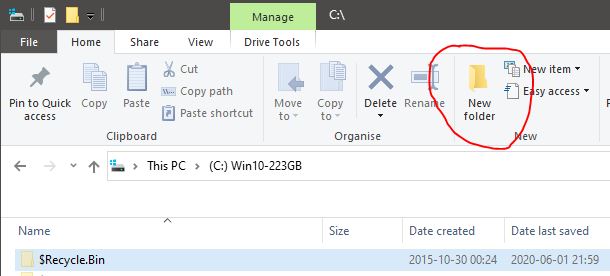
. Or an alternative drive of your choice, note, no space in PhotoAlbum.
2. Download the folder PhotoAlbum from Google Drive as a .zip file
. Click on the Google Drive share link that I sent you by email to open my Google Drive account.
. You should see PhotoAlbum top left with a long, long list of folders and files below.
. Click on "Download all" (top right, small blue text on the Google Drive screen).
. Bottom right corner "Preparing download" appears - "Zipping 1 file" - WAIT .....
. WAIT .... until "Zipped 1 file" appears, then disappears.
. Dialog box "Enter name of file to save to ..." appears.
. Note in which folder your ZIP file is going to be saved to, I'll call it your "Downloads Folder", then
. Accept the File name: ("PhotoAlbum-20260329T051643Z-3-001.zip" was created for me, could be diffferent for you) by clicking "Save"
. This action will download the contents of the folder PhotoAlbum on Google Drive as a ZIP file in your "Downloads Folder".
. Open your "Downloads Folder", check that "PhotoAlbum-20260329T051643Z-3-001.zip" has finished downloading (no .part file extensions).
. When you are sure the download has finished, close the Google Drive web browser tab. You have finished with Google Drive for now.
. My file "PhotoAlbum-20260329T051643Z-3-001.zip" was 1.3GB
3. Extract the files from the ZIP file to your new folder C:\PhotoAlbum on your HDD ( or SSD).
If you did not create "C:\PhotoAlbum" in Step 1, create it NOW and then . . .
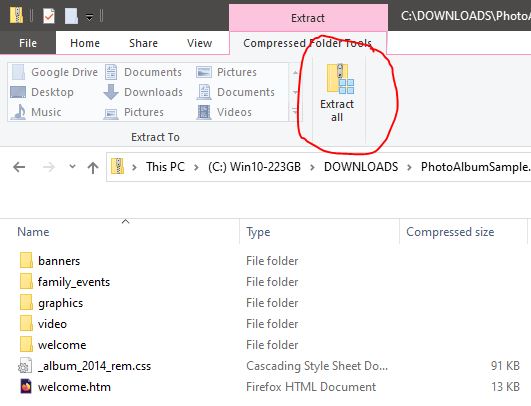
. Open Windows File Explorer and navigate to your downloads folder (noted above).
. Select "PhotoAlbum-20260329T051643Z-3-001.zip", then right click on it and select "Extract All..."
. The "Select a Destination and Extract Files" dialog box will open.
. Click the "Browse..." button and then navigate to and select your new folder "C:\PhotoAlbum"
. Click "Select Folder"
. Back on the "Select a Destination and Extract Files" dialog box
tick the "Show extracted files when complete" checkpoint.
. Click the "Extract" button
. And then wait .... about 7 minutes on my ancient Pentium powered computer . . . . wait . . . .
. Success is when a new File Explorer window opens displaying the contents of C:\PhotoAlbum
NOTE : If you have multiple .zip files, be vigilant when selecting the destination folder.
4. Double click welcome.htm to open guess what - the welcome page.
Click to hear the text
. Done. A shortcut to welcome.htm on your desktop is useful.
5. All working OK? Good, now tidy up your hard disc.
. Delete the file "PhotoAlbum-20260329T051643Z-3-001.zip" from your Downloads folder
6. In future - don't download, synchronise updates.
. I use FreeFileSync. Set up to update the Google copies from my working copy.
7. Copy the album to a USB stick.
. For backup and to view the album on different devices.
5. In future - don't download, synchronise updates.
. I use FreeFileSync. Set up to update the Google copies from my working copy.
6. Copy the album to a USB stick.
. Backup and to view the album on different devices.
Like everything on computers, it is easy when you know how.